
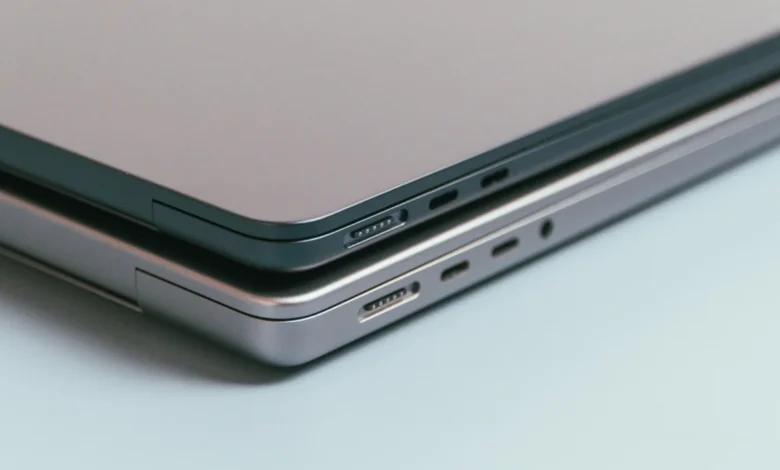
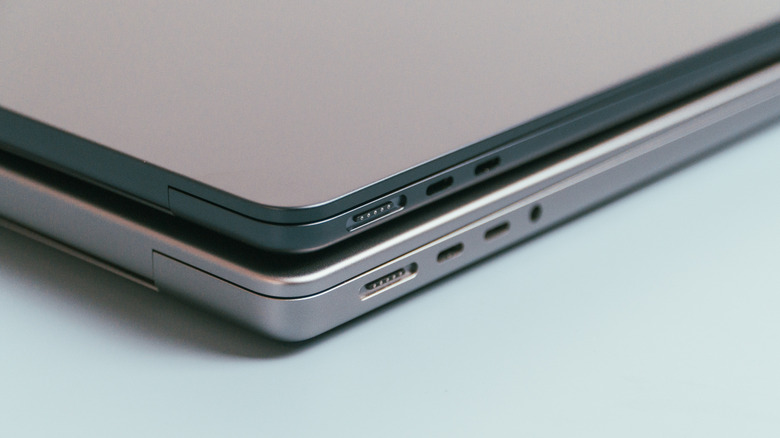
Apple has long championed a design philosophy centered on minimalism, sleek aesthetics, and the elimination of unnecessary visual clutter. From the removal of legacy ports and optical drives to the seamless integration of unibody aluminum chassis, the Cupertino-based tech giant consistently prioritizes clean lines over overt functional labeling. One subtle yet pervasive manifestation of this ethos is the complete absence of icons or text markings next to the USB-C and Thunderbolt ports on modern MacBook laptops, iMacs, and Mac Studio desktops. While users of Windows-based PCs are accustomed to a barrage of small, often cryptic logos—such as a battery icon, a lightning bolt, a "SS" for SuperSpeed, or a "D" for DisplayPort—denoting the precise capabilities of a given port, Apple users are routinely greeted by an unadorned pill-shaped cutout. This design choice, while visually satisfying, frequently sparks confusion among consumers attempting to discern the data transfer speeds, video-out capabilities, and charging protocols supported by each individual socket.
To understand why Apple leaves these ports unlabeled, one must examine the evolution of the company’s hardware design language, the technical convergence of USB-C and Thunderbolt standards, and the broader implications for modern peripheral connectivity.
The Evolution of Apple’s Port Minimalism
The modern era of Apple laptop design took a definitive turn in 2015 with the introduction of the ultra-thin 12-inch MacBook, which famously featured a single USB-C port for charging, video output, and data transfer. At the time, the industry was heavily reliant on USB-A, HDMI, Ethernet, and proprietary MagSafe connectors. By stripping away these traditional inputs and replacing them with a singular, reversible port standard, Apple forced both consumers and peripheral manufacturers into a transitional phase of hardware connectivity.
In subsequent years, as Apple expanded USB-C across its MacBook Pro and MacBook Air lineups—eventually phasing out standalone charging ports in favor of multi-purpose slots—the company simultaneously integrated Intel’s Thunderbolt technology. Thunderbolt, which shares the exact same physical connector shape (Type-C) as standard USB, offered vastly superior bandwidth, high-speed data transfer, and advanced daisy-chaining capabilities for external displays and storage arrays.
Despite the profound differences in internal data throughput and protocol architecture between a basic USB-C port and an advanced Thunderbolt port, Apple chose not to delineate them visually on the exterior casing. On many recent MacBook Pro models, every single port along the chassis accepts both USB-C and Thunderbolt cables interchangeably. Because the physical interface is uniform and hardware protocols have merged to accommodate backward compatibility, Apple’s design teams determined that distinct iconography was superfluous for the average end-user.
Decoding the Hardware: USB-C Versus Thunderbolt
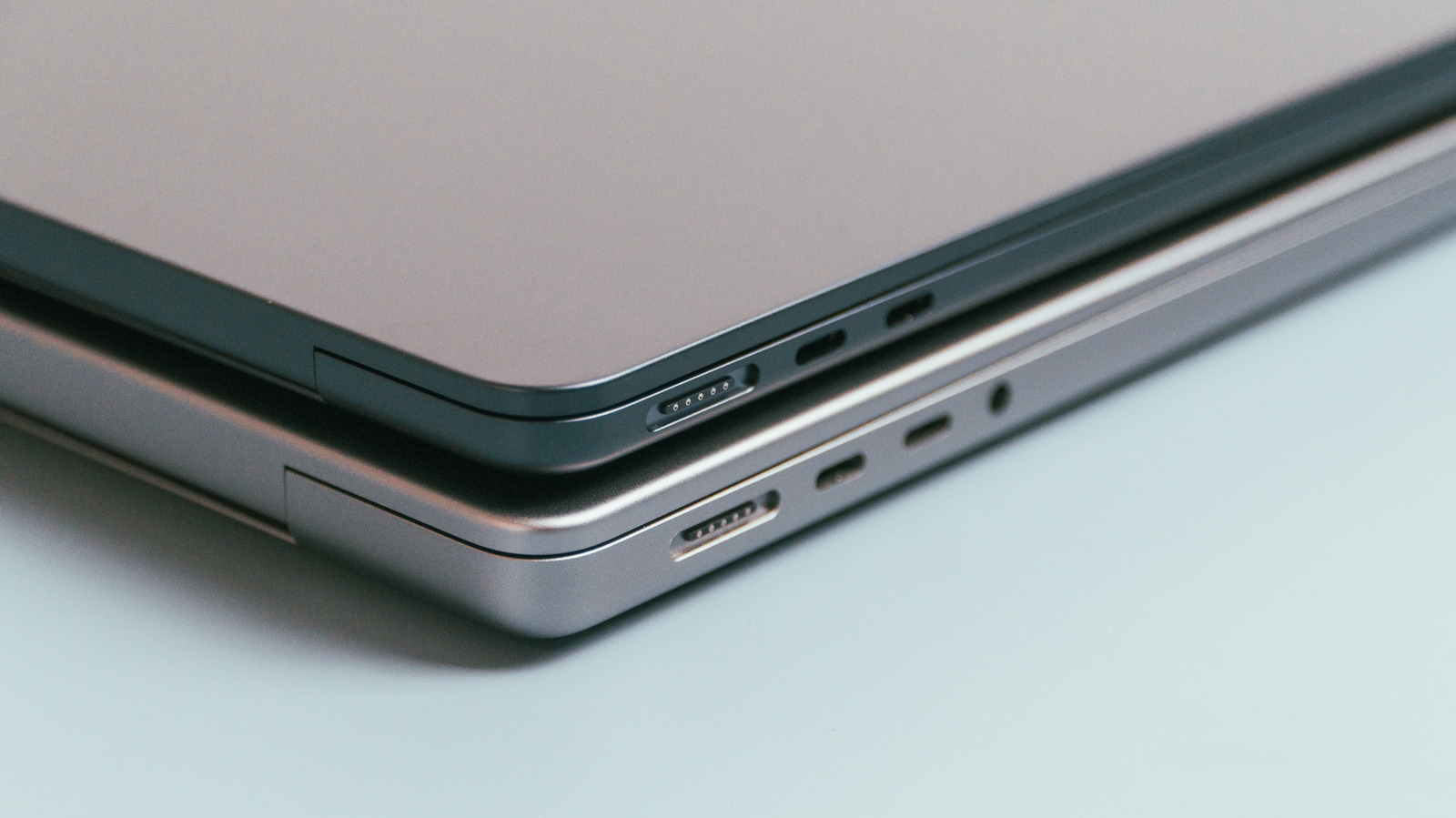
To the untrained eye, any cable with a rounded, oblong symmetrical tip can be plugged into any matching port on a contemporary Mac. However, the technical specifications running beneath the surface can vary dramatically depending on the specific machine and the exact port being utilized.
Technically speaking, "USB-C" describes exclusively the physical geometry of the connector—the male plug and the female receptacle—rather than the electrical protocol or data speed transmitted through it. A USB-C port can operate at older USB 2.0 speeds, mid-tier USB 3.2 Gen 2 speeds, or utilize advanced USB4 architectures. Furthermore, it may or may not support Power Delivery (PD) for charging or DisplayPort Alternate Mode for driving external monitors.
Thunderbolt, developed jointly by Intel and Apple, represents a much more robust, high-performance protocol layered on top of the USB-C physical connector. Thunderbolt ports guarantee high-end specifications, including PCIe data tunneling, massive bandwidth allocations (such as 40Gbps on Thunderbolt 4 and up to 80Gbps or 120Gbps on newer iterations), and support for multiple high-resolution external displays running at maximum refresh rates.
On select Apple hardware—such as recent configurations of the MacBook Air, 14-inch and 16-inch MacBook Pro, and Mac Studio—certain ports are designated strictly as Thunderbolt connections while others may handle standard USB-C traffic. While a Thunderbolt port will happily accept a standard USB-C charging cable or peripheral accessory, plugging a high-bandwidth device into a lower-tier port may result in throttled data speeds or an inability to drive multiple 6K monitors simultaneously.
Form Versus Function in Ultra-Thin Chassis
The physical architecture of modern MacBooks leaves very little margin for error or excess. Apple’s relentless pursuit of thinner, lighter profiles means that internal components are packed with extreme precision. The structural integrity of the aluminum unibody enclosure relies on tight tolerances, leaving little exterior surface area around port cutouts for laser-etched symbols, regulatory text, or proprietary logos.
While competing PC manufacturers often utilize stamped plastic bezels or heavy silk-screening to label ports, Apple prefers laser-milled precision that blends seamlessly into the matte metal finish. Adding multiple icons to denote whether a port supports Thunderbolt 3, Thunderbolt 4, USB4, Power Delivery 3.0, or DisplayPort 1.4 would arguably disrupt the minimalist aesthetic that has become a cornerstone of the brand’s global identity.
Nevertheless, this prioritization of form over explicit function has drawn criticism from enterprise users, IT administrators, and creative professionals who routinely manage complex desk setups involving docking stations, external RAID storage arrays, and high-refresh-rate production displays. For these users, misidentifying a port can lead to unexpected performance bottlenecks, such as dropped frames on external monitors or sluggish file transfers when moving hundreds of gigabytes of raw video footage.
How to Identify Your Mac’s Port Capabilities
Because Apple does not print physical guides onto the laptop chassis, users seeking to verify the exact specifications of their machine’s connectivity must rely on software documentation and official support channels.
The process for identifying port specifications involves navigating the macOS operating system:
- Click the Apple logo in the upper-left corner of the desktop menu bar.
- Select "About This Mac" to view the exact model name and release year of the device.
- Visit the official Apple Support website (support.apple.com) and enter the specific model identifier into the search query field.
- Navigate to the "Tech Specs" or technical specifications page for that device.
- Locate the "Charging and Expansion" section, which outlines the exact protocol limits, maximum data transfer rates, and external display support for each physical port on the left and right sides of the computer.
Broader Industry Trends and Consumer Implications
Apple’s approach to port labeling reflects a broader trend within the consumer electronics industry toward universal simplification. As the technology sector increasingly converges around USB Type-C as the ubiquitous standard for power and data—a transition accelerated by regulatory bodies such as the European Union mandating common charging standards—the need for proprietary connectors has steadily evaporated.
However, the lack of standardized labeling across the entire computing ecosystem continues to be a source of widespread consumer confusion. While Apple unifies its ports to accept both USB-C and Thunderbolt interchangeably on its higher-end machines, the underlying cable standards remain notoriously fragmented. Two cables that look identical on the outside can possess radically different internal wiring, supporting vastly divergent charging wattages and data speeds.
By removing visual clutter from the hardware itself, Apple places the burden of understanding these technical nuances onto the user’s software knowledge and cable selection. For the vast majority of consumers who simply plug in a charger or a single external monitor, the unlabeled ports represent the pinnacle of plug-and-play simplicity. For power users, however, navigating the invisible capabilities of Apple’s unadorned USB-C and Thunderbolt slots remains an exercise in checking technical manuals rather than glancing at the laptop chassis.