The Indispensable Role of Sound in Visual Storytelling
The human brain processes visual and auditory information simultaneously, and a well-crafted soundscape can dramatically elevate the emotional impact, realism, and perceived quality of a visual production. From subtle atmospheric effects that establish mood to synchronized sound effects that punctuate key animations, and from background music that drives pacing to clear dialogue that conveys information, audio is fundamental to engaging an audience. In the context of After Effects, where dynamic animations and complex visual effects are constructed, the ability to integrate and fine-tune sound directly within the composition streamlines the creative process. It allows artists to ensure perfect synchronization, create reactive visuals, and maintain creative control without constantly round-tripping to a dedicated audio workstation, although such tools remain essential for advanced sound design. Industry trends indicate a consistent emphasis on high-fidelity audio, with consumer expectations for sound quality matching that of visuals across platforms, from social media to broadcast television and cinematic releases. A recent survey among digital content creators highlighted that projects incorporating professionally mixed and integrated audio consistently report higher viewer retention rates and overall engagement metrics.
Navigating After Effects’ Audio Interface: A Foundation for Precision
Effective audio management in After Effects begins with a thorough understanding of its dedicated audio panels. These interfaces provide essential feedback and control mechanisms crucial for monitoring and adjusting sound levels during the visual editing process.

-
The Audio Panel: Real-time Monitoring and Playback Control
Accessed via Window > Audio, the Audio panel serves as the primary visual meter for sound levels within a composition. It displays the decibel (dB) levels of any audio playing back, allowing creators to identify potential clipping (distortion caused by excessively high levels) or ensure consistent volume. This real-time visual feedback is critical for maintaining professional audio standards, preventing harsh audio spikes, and achieving a balanced mix. The panel also offers the ability to adjust the playback level, a crucial distinction as this only affects the preview audio during editing and does not alter the final output volume of the audio track itself. This feature allows editors to comfortably monitor audio at their preferred volume without impacting the project’s eventual sound mix. For instance, an editor might temporarily lower the playback level to focus on subtle visual cues while still visually monitoring the actual audio levels for the output. Adherence to broadcast-safe audio levels, typically peaking around -6 dB to -3 dB for dialogue and music, is greatly facilitated by the constant visual reference provided by this panel. -
The Preview Panel: Customizing Playback for Efficiency
The Preview panel, found under Window > Preview, offers comprehensive control over how After Effects renders and plays back compositions. Critically for audio, this panel includes settings to enable or disable audio during playback. While it might seem counterintuitive to turn off audio, this feature is invaluable in scenarios where system resources are strained by complex visual effects, or when an artist needs to focus solely on visual timing without auditory distraction. Conversely, ensuring audio playback is enabled is paramount for tasks requiring precise synchronization between visual elements and sound cues. The panel also controls other preview parameters like frame rate, resolution, and loop behavior, all of which indirectly influence the efficiency of audio review. For instance, a lower resolution preview can allow for smoother real-time audio playback on less powerful systems.
Accelerating Workflow: Key Shortcuts for Audio Manipulation
In the fast-paced environment of motion graphics and video editing, efficient navigation and quick access to playback controls are paramount. After Effects offers a suite of keyboard shortcuts that significantly streamline the process of working with audio.
-
Instant Playback and RAM Preview: Balancing Fidelity and Speed
The spacebar is the universal shortcut for initiating a standard preview of the composition. When audio playback is enabled in the Preview panel, this action will play both video and audio. However, for more demanding compositions, After Effects may drop frames to maintain real-time playback, potentially leading to desynchronized audio. For a guaranteed synchronized preview of both audio and video, the ‘0’ key on the numeric keypad activates the RAM Preview. This function renders a section of the composition into RAM before playing it back, ensuring that both audio and video play in perfect sync without dropped frames. This is indispensable for critical timing adjustments where visual and auditory precision is non-negotiable, such as syncing animation keyframes to a musical beat or ensuring sound effects land perfectly on visual impacts.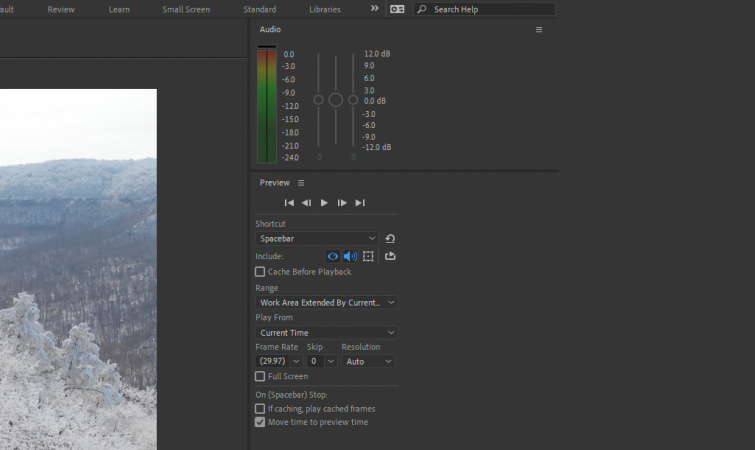
-
The Waveform Advantage: Visualizing Sound for Accurate Edits
For audio-centric reviews, the ‘.’ (period) key on the numeric keypad initiates an Audio Only preview. This plays back only the audio track(s) in the composition, allowing for rapid auditioning of sound effects, music cues, or dialogue without the computational overhead of rendering visuals. This can be particularly useful for quickly scrubbing through a long audio track to find specific moments or for checking the overall sound mix. Furthermore, a crucial shortcut for visual editing of audio is quickly pressing ‘L’ twice after selecting an audio layer in the timeline. This toggles the waveform display for that audio file. The waveform, a visual representation of the audio’s amplitude over time, is an invaluable tool for precise editing. It allows artists to visually identify beats, transients, and quiet passages, enabling accurate placement of visual elements without relying solely on potentially delayed audio playback. This visual method mitigates the slight playback delays that can occur in After Effects, ensuring frame-perfect synchronization.
Direct Audio Control within the Composition: Muting, Levels, and Keyframing
Beyond global panel controls, After Effects provides granular control over individual audio layers directly within the composition timeline, offering powerful tools for dynamic sound design.
-
Dynamic Audio: Crafting Fades and Volume Automation
When an audio file is added to an After Effects composition, a Speaker Icon is displayed to the far left of its layer in the timeline. Clicking this icon allows for quick toggling between enabling and muting the audio layer, a simple yet essential function for isolating specific tracks during mixing or troubleshooting. Delving deeper, expanding the audio layer’s properties reveals the Audio Levels and Waveform options. The Audio Levels property, measured in decibels, is fully keyframable. This means creators can set multiple keyframes along the timeline to dynamically adjust the volume of an audio track over time. This capability is fundamental for professional audio mixing, allowing for smooth fades in and out of music tracks, ducking background music when dialogue occurs, or creating dramatic volume swells for impact. For instance, a slow fade-in for an opening music track or a sharp fade-out at a scene transition can be precisely controlled with keyframes. The visual representation of the audio fade, reflected directly on the audio waveform, provides immediate feedback, allowing for precise adjustments. -
The Precision Imperative: Editing by Waveform, Not Playback
A critical piece of advice for After Effects users is to base audio-driven edits on the waveform display rather than solely on the sound of the audio during playback. After Effects, being primarily a visual effects and motion graphics application, can sometimes exhibit a slight latency or delay in audio playback, especially with complex compositions or under heavy system load. This delay, while often subtle, can lead to imprecise synchronization if edits are made purely by ear during real-time preview. By contrast, the waveform is a static, accurate representation of the audio data. Editing to the visual peaks and troughs of the waveform ensures frame-accurate alignment between visual events and auditory cues. This technique is particularly vital for syncing fast-paced animations to music beats, creating responsive visualizers, or aligning specific sound effects with precise moments in an animation. Professional workflows often involve zooming in on the timeline to the frame level to match keyframes precisely with waveform transients, ensuring perfect harmony between sight and sound.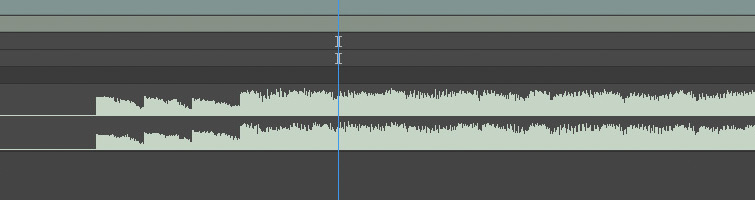
Leveraging After Effects’ Built-in Audio Effects: Practical Applications and Strategic Use
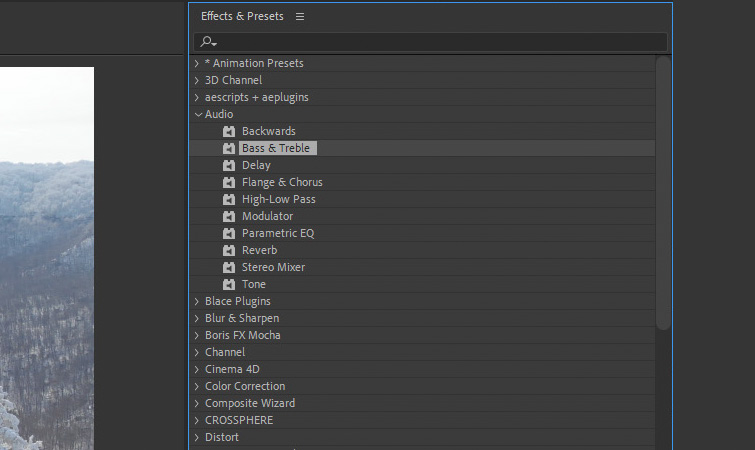
After Effects includes a selection of basic audio effects, located under Effects > Audio, designed for quick adjustments and minor enhancements. While not a substitute for a dedicated digital audio workstation (DAW), these effects offer convenient solutions for specific scenarios.
-
Utility vs. Specialization: When to Use AE’s Audio Effects
The built-in audio effects, such as Bass & Treble, Reverb, and Stereo Mixer, provide fundamental sound manipulation capabilities. Bass & Treble allows for simple equalization adjustments, boosting or cutting low and high frequencies to shape the tonal quality of a sound. Reverb can add a sense of space or environment, making a dry sound feel like it’s in a larger room or echoing canyon. The Stereo Mixer allows for basic panning and channel balancing, useful for positioning sounds within the stereo field or fixing minor stereo issues. These effects are best utilized for minor, non-destructive adjustments that don’t require extensive audio engineering. For example, adding a touch of reverb to a sound effect to better blend it with a visual scene, or slightly boosting the bass of a music track for added impact, can be efficiently done within After Effects. The convenience of applying these effects directly to an audio layer without leaving the application can save time in a tight production schedule. -
The Workflow Consideration: Integrating with Dedicated Audio Software
Despite the utility of After Effects’ built-in effects, it is generally recommended that significant audio editing, mixing, and mastering be performed in a dedicated audio program like Adobe Audition, Avid Pro Tools, or Apple Logic Pro. These DAWs offer a far more comprehensive suite of tools, including advanced EQs, compressors, noise reduction, multi-track mixing capabilities, and a wider array of professional-grade plugins. The workflow often involves preparing and mixing audio in a DAW, exporting a final stereo mix or stems, and then importing these polished audio files into After Effects for final visual synchronization. This approach leverages each application for its strengths: precise audio engineering in a DAW and sophisticated visual integration in After Effects. Adobe’s Dynamic Link feature facilitates this integration, allowing for seamless round-tripping between Premiere Pro (a video editor) and Audition (an audio editor), and then importing the result into After Effects. While After Effects’ audio effects are useful in a pinch or for very simple adjustments, complex sound design, dialogue cleanup, or intricate music mixing warrant the power and precision of specialized audio software.
Bridging Sound and Vision: The Power of Converting Audio to Keyframes
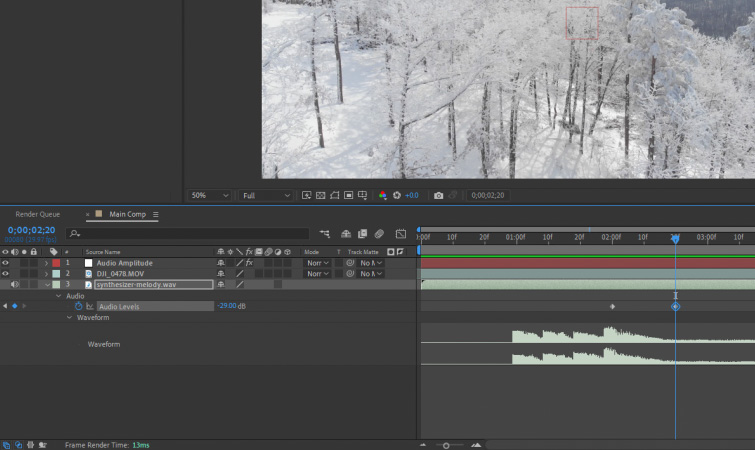
One of After Effects’ most powerful and creatively liberating audio features is the ability to convert an audio waveform into animatable keyframe values. This feature fundamentally bridges the gap between sound and vision, enabling dynamic, audio-reactive motion graphics and visual effects that respond directly to the intensity of a sound.
-
Technical Breakdown: From Waveform to Animatable Data
To harness this functionality, a user simply right-clicks on an audio file within the composition timeline, navigates to Keyframe Assistant > Convert Audio to Keyframes. This action generates a new Null Object layer, automatically named "Audio Amplitude." This Null Object does not contain visual content itself but acts as a container for three distinct slider controls: "Left Channel," "Right Channel," and "Both Channels." Crucially, each of these sliders is automatically populated with keyframes that correspond to the amplitude (volume) of the respective audio channel over the duration of the track. These keyframed values dynamically change in response to the sound’s intensity, accurately reflecting the peaks and valleys of the original audio waveform. The values can be visualized and fine-tuned within the Graph Editor, providing a detailed graphical representation of the audio amplitude data. This technical conversion transforms ephemeral sound into tangible, animatable data, opening up a world of creative possibilities. -
Creative Frontiers: Real-World Applications of Audio-Driven Animation
The "Convert Audio to Keyframes" feature is a cornerstone for creating sophisticated audio-reactive animations. By "picking-whipping" or linking various visual properties (such as scale, rotation, position, opacity, color, blur, or even particle system parameters) to these "Audio Amplitude" slider values, creators can make visual elements pulse, grow, shrink, change color, or move in direct response to the beat or intensity of the music or sound effects. For example, a logo could scale up with each bass drum hit, text could flicker with vocal transients, or a particle system could emit more particles as the music swells. This automation eliminates the tedious and often inaccurate process of manually keyframing visual properties to match audio, ensuring perfect synchronization and a natural, organic feel to the animation. It is extensively used in music videos, kinetic typography, audio visualizers, dynamic infographics, and promotional content where a strong connection between sound and visuals is desired. This capability underscores After Effects’ role not just as a visual editor, but as an environment where sound can directly drive visual expression.
The Importance of Sound Asset Management: Sourcing and Licensing
No discussion of audio in After Effects is complete without addressing the critical aspect of sourcing and managing sound assets. The quality and legality of sound effects and music tracks significantly impact the professionalism and reach of any production.
-
Building a Professional Sound Library: Efficiency and Compliance
Access to a high-quality, diverse sound library is invaluable for any content creator. Rather than relying on generic or low-quality sounds, investing in or utilizing curated collections of royalty-free sound effects and music tracks ensures a professional finish. Websites like PremiumBeat.com, as referenced in the original tutorial, offer extensive libraries of licensed audio content suitable for various projects. These resources not only provide professionally recorded and mixed sounds but also come with clear licensing agreements, which are paramount for commercial and public-facing projects. Understanding and adhering to licensing terms for music and sound effects is a non-negotiable aspect of modern media production, protecting creators from potential legal issues related to copyright infringement. Building a well-organized personal or team sound library, categorized by type (e.g., foley, ambiences, transitions, musical stings), allows for rapid retrieval and integration, significantly boosting production efficiency. -
The Strategic Role of Sound Effects and Music
Sound effects, ranging from subtle clicks and whooshes to dramatic impacts and environmental ambiences, enrich the visual experience by adding realism, emphasis, and emotional depth. Music, on the other hand, sets the overall tone, dictates pacing, and evokes specific emotions, guiding the audience through the narrative. The strategic selection and integration of these audio assets, even within After Effects’ visual-centric workflow, are crucial for crafting compelling stories. For instance, a high-quality "epic sound effects" pack, as highlighted in the tutorial, can instantly elevate trailers and dramatic sequences, imparting a cinematic quality that resonates with viewers. The careful interplay between visuals, music, and sound effects is what transforms raw footage and animations into cohesive, impactful, and memorable experiences.
In conclusion, while Adobe After Effects may not be a primary digital audio workstation, its comprehensive suite of audio tools, from essential monitoring panels and efficient shortcuts to dynamic keyframing capabilities and the transformative "Convert Audio to Keyframes" feature, makes it an indispensable environment for integrating and manipulating sound. Mastering these functionalities empowers motion designers and video professionals to transcend purely visual creation, enabling them to craft truly immersive and impactful audio-visual narratives. By understanding the nuances of audio playback, leveraging waveform accuracy, strategically applying built-in effects, and harnessing the power of audio-reactive animation, creators can ensure their projects resonate with audiences on both a visual and auditory level, achieving a professional polish that stands out in today’s competitive media landscape. The ongoing evolution of After Effects’ audio capabilities continues to reinforce its position as a central hub for comprehensive media production, where sound is not an afterthought, but an integral component of creative expression.
Related posts: